
More in “Getting started”
Getting started
How do I send medical files?
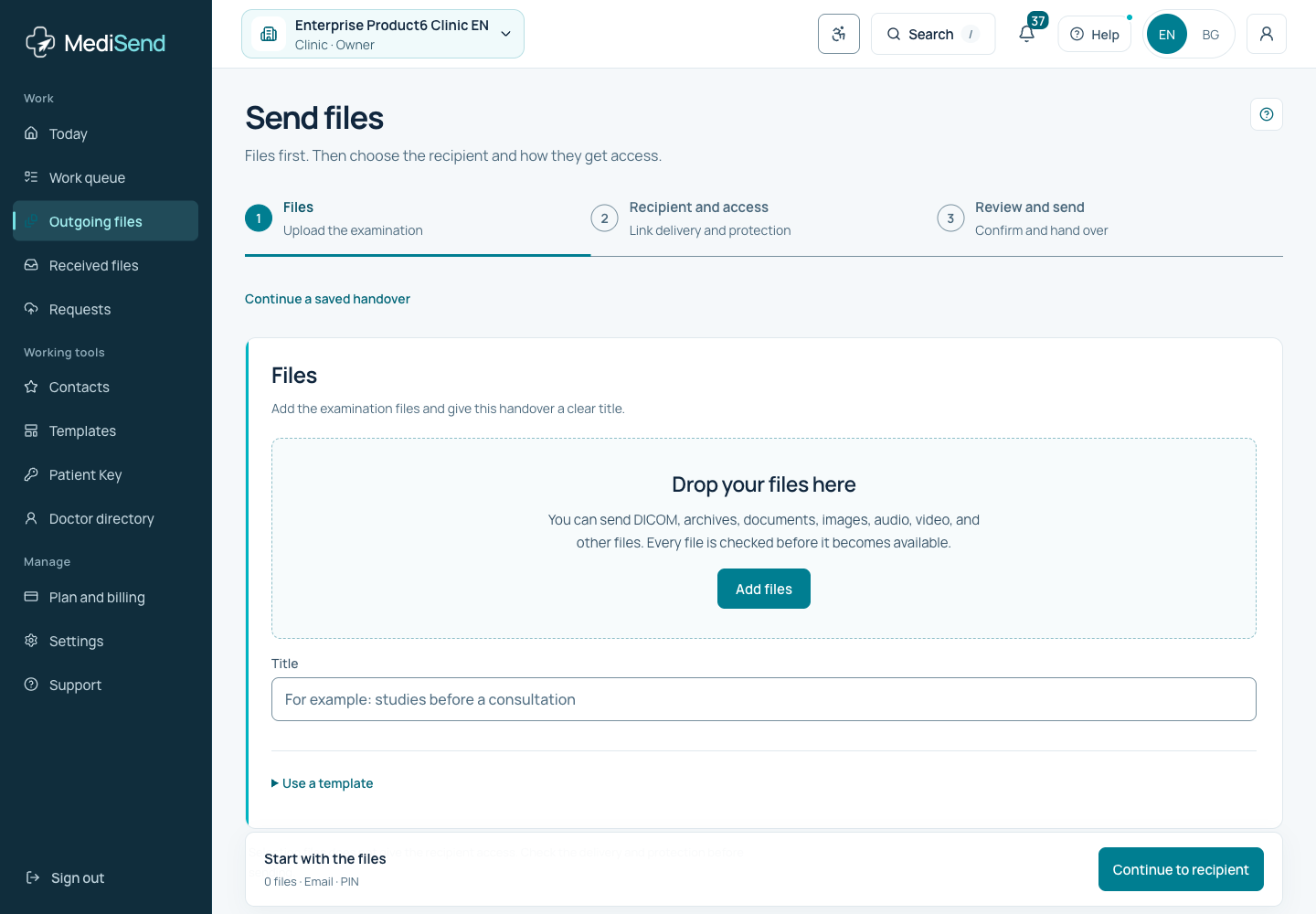
Choose Send files and follow three stages: Files, Recipient and access, and Review and send. Additional settings are optional; uploading does not automatically send the handover.
Correct and continue a draft
Choose the unsent draft from Continue a saved handover. In Files, select Remove for a mistaken file and confirm. The file is excluded from the handover; retained bytes and audit follow the retention policy. This correction is unavailable once any access has been granted.
The PIN stays in memory through a brief check of the same authorized session and a return from Help. Reloading, leaving the composer or changing account, clinic or permissions clears it; review the new PIN when reopening. The PIN is not kept in browser storage.
Reception prepares, a colleague sends
If your role permits preparation but not sending, Today and Outgoing files show Prepare files. Add the files and choose Save draft. This sends no notification and grants no recipient access. A colleague with sending permission opens the same draft using Continue handover, reviews the recipient, delivery, expiry and new PIN, then sends it. Do not create a second handover for the same files.
1. Files
Add the documents, images or archive needed and check the limits shown. The first file suggests an editable title; patient details, purpose and a requested response are optional. You can enter recipient and access details while files are being checked; final sending waits until they are ready.
- 1From Today or Outgoing files, choose Send files.
- 2Add the files and follow uploading and security checking separately.
- 3After an interruption, open the saved handover. For an incomplete upload, reselect the exact original file if requested.
2. Recipient and access
Enter a named person, choose a saved contact or select a verified doctor. A contact fills its recorded details and permissions; the preferred channel is a suggestion to review before sending. A selected directory doctor receives the examination in their account after final sending.
Choose email, SMS or Link / QR in person. For SMS enter a valid Bulgarian phone number and confirm authorization to notify. The SMS sends the link; its mandatory PIN is shared separately. PIN is optional for email or in-person delivery. Review access expiry, which defaults to seven days within the allowed period shown. Additional recipients, notes, a requested response and permissions are in additional settings.
3. Review and send
Review ready files, the named recipient, delivery method, PIN and expiry in the summary. Return to the relevant stage to change a setting. Send only after files pass security checks. Follow handover creation and notification status separately.
Continue a saved draft
At the start of Send files, open Continue a saved handover and choose the draft. You can also open its detail and Continue handover. The form continues the same unsent outgoing handover for the current clinic only while it has no recipients, Patient Key or access grants. For an already sent or shared handover, check its history instead of sending again.
Recorded files and the displayed settings come from the server. Check that your latest changes were saved; after a save failure keep the page open. Reopening generates a new PIN and requires SMS authorization again. The full patient identifier is not restored; its recorded last four characters remain. Review and replace expired access or reply deadlines before sending.
After sending
The result shows the handover, link and notification status. Copy or print the same link when needed and share the PIN separately. In-person delivery sends no notification. Check history before retrying; a created handover does not mean confirmed delivery or clinical review.
Failed or unconfirmed sending
Handover created, but notification not sent means you should check the existing recipient and the available notification retry. Do not create a second handover. If sending did not complete, keep your details and correct the indicated field. If the result cannot be confirmed, check current state and history before retrying. For an unresolved problem open support from the message: the displayed support reference is attached to the request when available. Include no PIN, protected link or medical contents.
Queued or unconfirmed notification
A queued notification means the handover is recorded while notification processing continues. Do not send again merely because confirmation is not immediate. External provider acceptance is not yet proof of delivery to a phone or mailbox.
For an unconfirmed external outcome, inspect the same handover and its history. An automatic repeat could create a second message, so do not assume it is safe. Use only an authorized on-screen action or contact support with the reference. For in-person delivery, check the available link; generating a replacement invalidates the previous one.
Example: start with files
Ready to continue?
Open the relevant workspace. Your current role and access still apply.
Related articles
Last updated: 02/11/2026
Was this article helpful?