
More in “Handovers”
Handovers
How do I use the complete work queue?
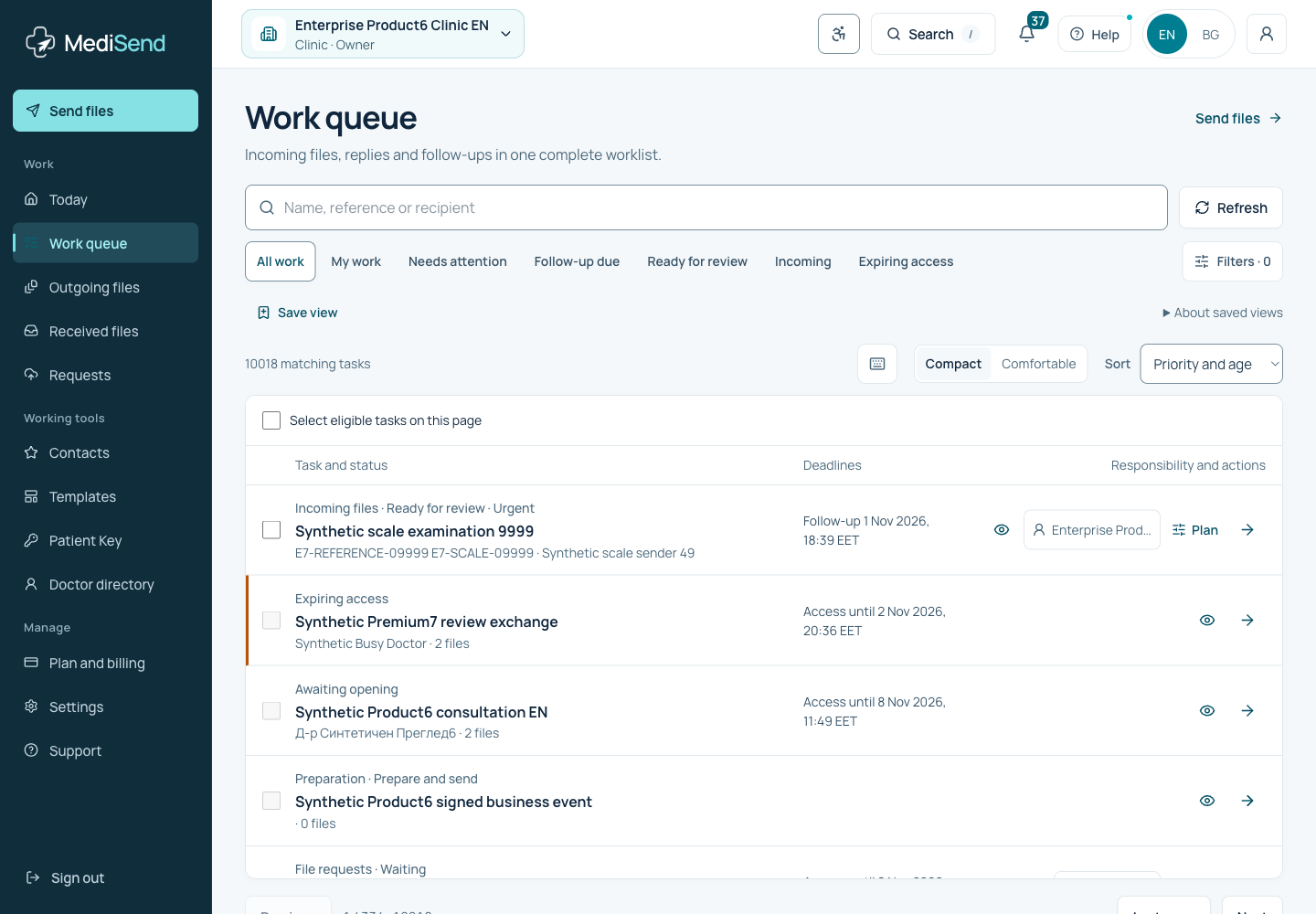
The work queue brings together tasks available in the selected clinic. Quick views, search and filters apply to the complete authorized list, not just the visible page.
Find the next task
Open Work queue. Choose Mine, Attention, Follow-up due, Incoming or Expiring. Filters reveals additional criteria. Sort by priority, age or deadline and choose compact or comfortable rows.
Preview and keyboard
The preview icon or Space on a focused task opens its current record beside the list. On a phone it fills the screen. Review authorized files, assign an owner, start handling or complete administrative review. The panel arrows switch tasks. Open full record shows the complete history and access controls. Content clears if access is withdrawn. J/K moves focus between tasks and / focuses search.
Saved views and privacy
You can save up to six allowed filter combinations for this browser, account and clinic. Search text is not saved in a view. Row density, current selection and an unsubmitted bulk operation remain temporary in the open workspace’s memory.
Example: the complete work queue
Ready to continue?
Open the relevant workspace. Your current role and access still apply.
Related articles
- How do I assign several tasks to a colleague?
- How does the team assign Today’s tasks?
- Who takes the next step?
Last updated: 02/11/2026
Was this article helpful?