
More in “Access and security”
Access and security
How do I track a support ticket?
Check your personal account or selected clinic and open Support. Find the conversation, read the next action and reply there. A clinic operation can be linked only to an authorized conversation for that same clinic.
New or existing conversation
- 1Check your personal account or selected clinic and open Support.
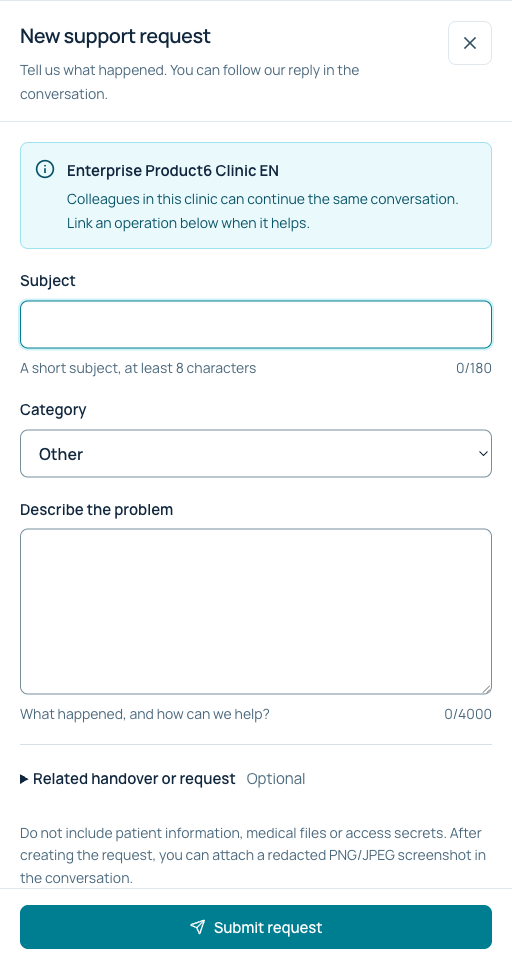
- 2Look for an existing request. For a new one, choose a category and describe the screen, time and support code.
- 3Link an operation you are permitted to view and send. Add replies in the same conversation.
Find the next reply
Choose All, Unread, Open, Waiting for your reply or Resolved and search by subject. The conversation shows Next step — your reply or the MediSend team’s. Use New request for a new conversation. Sending a reply is explicit; opening and reading does not send it.
Resolution and reopening
Read the resolution or confirm that the issue is solved. If an eligible resolved request still needs work, use its reopening action; it is available for up to 30 days after resolution. A closed request may not offer this action.
Without a clinic and without secrets
Personal conversations belong to the account; clinic conversations require membership in that clinic. Switching workspace transfers neither history nor permissions. In the conversation you can attach a redacted PNG/JPEG screenshot up to 2 MB and 8 megapixels. First remove all patient information, clinical text, passwords, PINs, OTPs and protected links, then confirm this with the checkbox. The screenshot is attached only after a successful safety check. If it fails, your selection is kept for retry. Medical files and other formats are not accepted.
Example: a new clinic support request
Ready to continue?
Open the relevant workspace. Your current role and access still apply.
Related articles
- How do I get help from MediSend?
- What MediSend support can see
- How do I follow a correction or refund?
Last updated: 02/11/2026
Was this article helpful?